
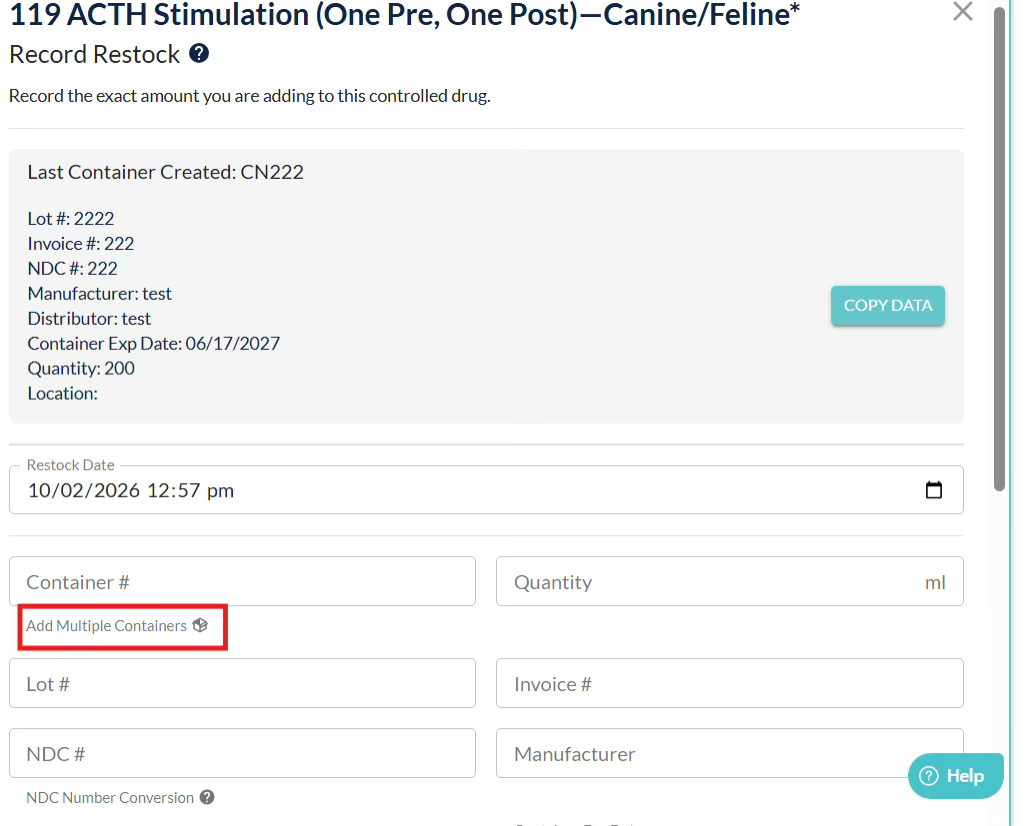
On the Restock screen, a new clickable text/button has been added underneath the Container Number field.
When this button is clicked, a popup will appear displaying a box for adding multiple containers.
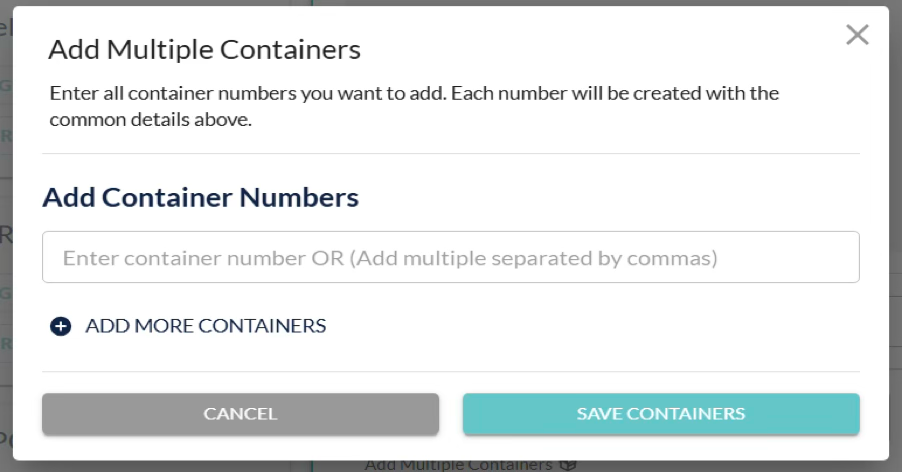
Here, you can add multiple containers by either pressing Enter or clicking the “Add more containers” button to display a new input field.
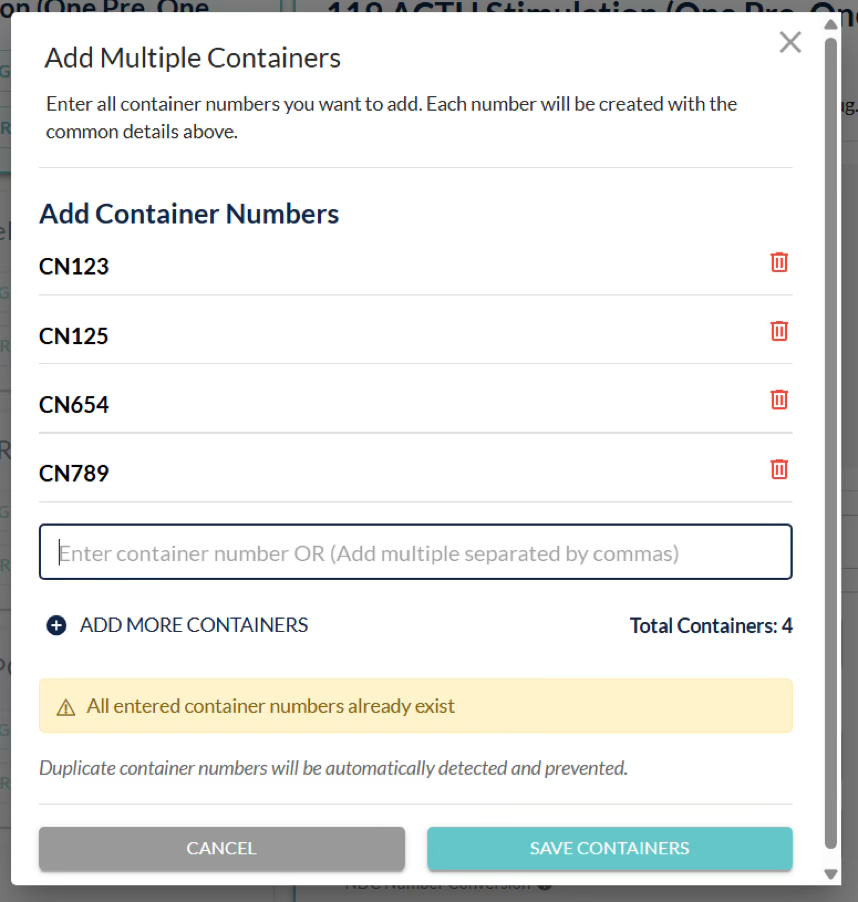
Duplicate container numbers will be skipped, and you will not be able to save without entering at least one container number.
After clicking the “Save Containers” button, the selected container numbers will be displayed on the Restock screen. An Edit List button will also be available, allowing you to add or remove containers.
You will also be able to remove either list by clicking Remove List.
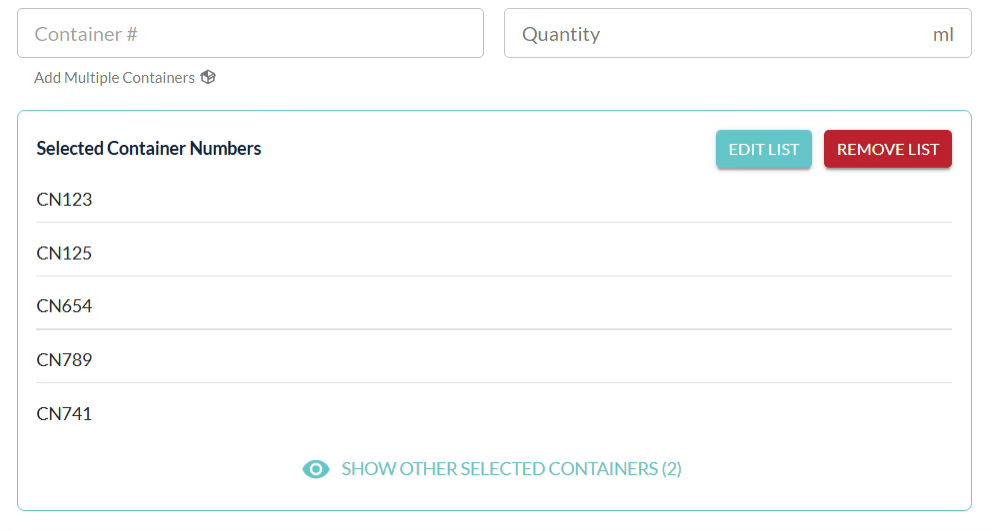
Once the container list is finalized, you can complete the remaining fields and proceed with saving the restock.
Please note: If you are weight tracking, the Received Bottle Weight and Before Open Bottle Weight is only asked for once. Therefore, the same weights entered in these fields will be copied on all containers on the list.
Privileged and confidential. For VetSnap approved use only. Copyright © VetSnap Corporation. All rights reserved. Not to be distributed, reproduced, modified, or used to create derivative works without explicit written permission from VetSnap Corporation. VetSnap is not a DEA consultant and does not provide legal or regulatory advice regarding controlled substances.